BetterTTV, usually called BTTV, is a browser extension by NightDev that adds extra emotes and chat features to Twitch : and to YouTube, where it runs in beta. It is free and open source, and the official website puts the whole install in three steps: install the extension, add some emotes, and start chatting.
This guide covers the part people actually get stuck on: getting the extension into the browser safely. The rule for every browser below is the same. Install only from the official BetterTTV website or an official browser store listing. There is no separate installer file to download, no account to create, and no reason to use a mirror site.
Before you install: three quick checks
Two minutes of preparation prevents most installation problems.
1. Use a desktop browser
BetterTTV is a browser extension for supported desktop browsers. Its emotes are not available on the Twitch mobile app, and mobile browsers do not install desktop extensions in the same way. If you are reading this on a phone, switch to a computer for the install.
2. Update your browser first
Open your browser's settings and install any available stable update before you begin. An outdated browser is one of the most common reasons an extension installs but does not appear to work. The exact menu differs by browser, but every major browser has an "About" page that checks for updates automatically.
3. Install in the right profile
If you use several browser profiles : for example, one for work and one for personal use : remember that an extension installed in one profile may not automatically appear in another. Install BetterTTV in the profile where you actually watch Twitch.
The one rule that matters: the only safe installation routes are the official BetterTTV website at betterttv.com and the official browser store listings it links to. If a download page offers you a separate executable file, a repackaged extension, or asks you to disable browser security, leave that page.
How to install BetterTTV on Chrome
Chrome is the most common way people install BetterTTV, and the steps are short.
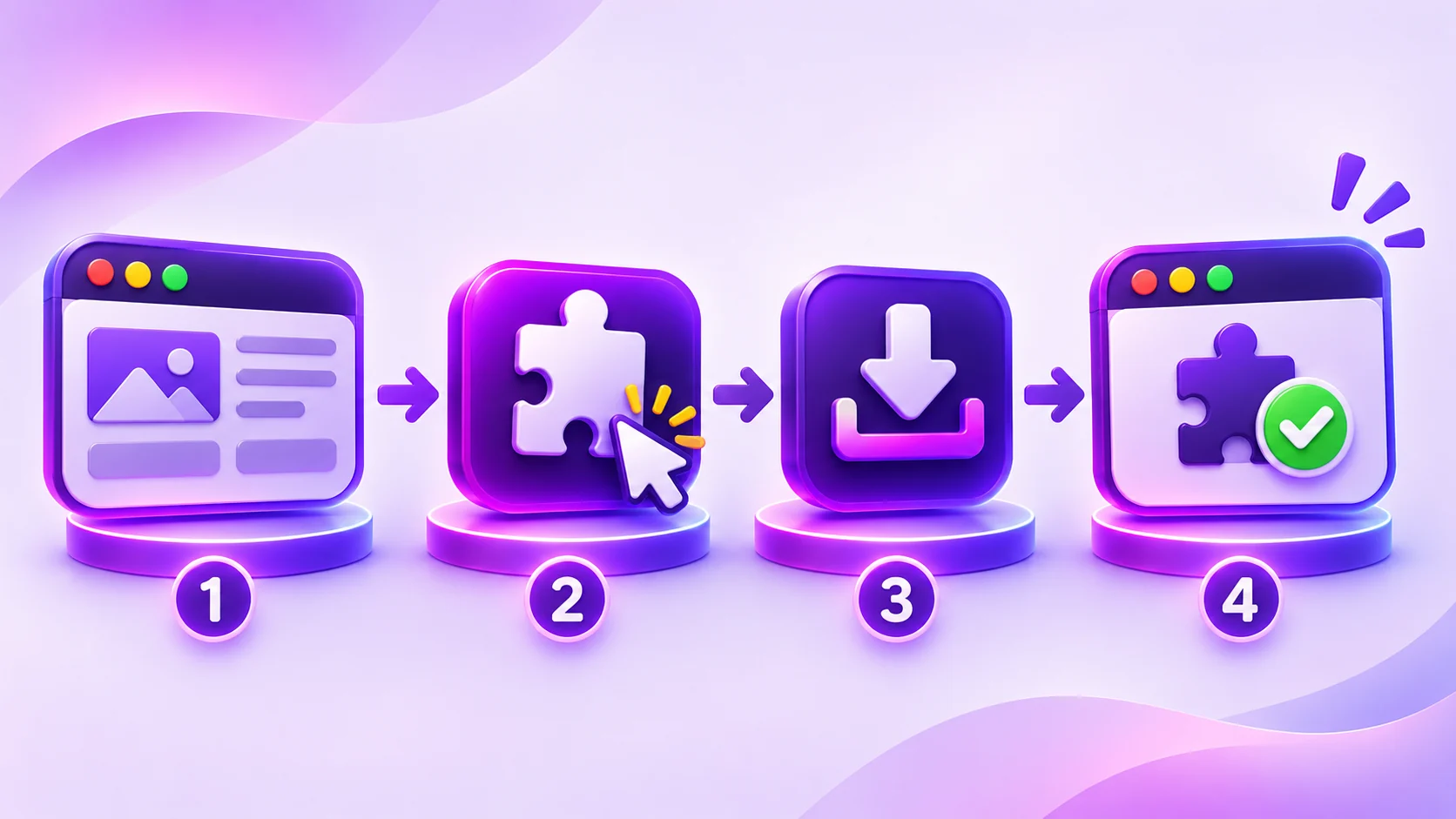
- Open the official route. Go to the BetterTTV for Chrome download page on this site and press the button. The official Chrome Web Store listing opens in a new tab.
- Review the listing. Check the publisher (NightDev), the permissions the extension asks for, the description, and the current store information. This is the step most people skip : and the step that protects you from installing a lookalike.
- Click "Add to Chrome". Use the browser's own install button and confirm the prompt that appears. Chrome will download and install the extension from the store.
- Visit Twitch. Open twitch.tv in Chrome. Just install and visit Twitch to begin using the extension : no account is needed, and there is nothing else to download.
To confirm it worked, look for the BetterTTV emote menu in Twitch chat and the BetterTTV settings option. If nothing looks different, refresh the page first : that alone fixes most first-install confusion. If it still looks unchanged, open chrome://extensions and check that BetterTTV is switched on.
How to install BetterTTV on Firefox
Firefox installation follows the same pattern, with the official BetterTTV website choosing the route.
- Open the official route. Go to the BetterTTV for Firefox download page and press the button. The official Firefox Add-ons listing opens in a new tab.
- Choose the Firefox option. Select the Firefox installation option shown on the official site and follow its linked Firefox Add-ons listing.
- Review the listing. Check the publisher, permissions, description and current store information, exactly as you would on any other browser.
- Add to Firefox and visit Twitch. Use the browser's own install button, then open Twitch in Firefox to begin using the extension.
If the emote menu does not appear, open Firefox Add-ons Manager and check that BetterTTV is enabled, then refresh the Twitch page. Firefox profiles behave like Chrome profiles: an extension installed in one profile does not automatically appear in another.
How to install BetterTTV on Edge
Edge users install from the official Microsoft Edge Add-ons listing.
- Open the official route. Go to the BetterTTV for Edge download page and press the button. The official Edge Add-ons listing opens in a new tab.
- Review the listing. Check the publisher (NightDev, LLC), permissions, description and current store information.
- Click "Get". Use Edge's own install button and confirm the prompt.
- Visit Twitch. Open Twitch in Edge. No account is needed, and there is nothing else to download.
Edge is built on the same engine as Chrome, so the day-to-day experience is very similar. The troubleshooting is the same too: check that the extension is switched on in Edge's Extensions page, refresh Twitch, and update Edge if the extension misbehaves.
How to install BetterTTV on Opera
Opera needs one extra moment of care, because support depends on your exact Opera setup.
- Open the official route. Go to the BetterTTV for Opera download page and press the button. BetterTTV’s Chrome Web Store listing opens in a new tab; Opera may require Chrome extension support to install it.
- Check the Opera guidance. Confirm whether your Opera setup is supported and which installation method the official site currently recommends. Do not assume Opera is supported just because it is based on a familiar browser engine.
- Review the listing. Check the publisher, permissions, description and current store information before proceeding.
- Install and visit Twitch. Use the browser's own install button, then open Twitch in Opera.
If the official site does not currently offer an Opera option, that is the answer : do not go looking for an Opera installer on a third-party download site. Check the official guidance again later instead.
Installing BetterTTV for YouTube
BetterTTV also works on YouTube, where it runs in beta. The install itself is the same : you install the same browser extension. The difference is permission: to enable BetterTTV for YouTube, you need to agree to the additional permission at installation. If you did not agree at install time, you can still enable it later from BetterTTV Settings.
One honest limitation: not all BetterTTV settings are compatible with YouTube at this time. If a feature works on Twitch but not on YouTube, that is usually the reason. Check the current official information rather than assuming the feature is broken.
What the permission prompt means
When you click "Add to Chrome" or the equivalent, your browser shows a permission prompt: the list of things the extension asks to do. This is the moment to slow down, because it is the browser's own safety check : and it is also where lookalike extensions give themselves away.
For BetterTTV, the prompt describes access to the sites it works on : Twitch and YouTube : so it can add emotes and change how chat displays. That is the access the extension needs to do its job: it cannot show you extra emotes in Twitch chat without being allowed to read and modify Twitch pages. What it should not ask for is unrelated access : for example, permission to read your browsing history across all sites, or to manage downloads, or to change your search engine. If a listing that claims to be BetterTTV asks for permissions that have nothing to do with Twitch or YouTube chat, stop and check the publisher name. The genuine listing is published by NightDev (NightDev, LLC on Edge), and the support address on the Chrome Web Store listing is a nightdev.com address.
One permission deserves a specific note: the YouTube permission. BetterTTV supports YouTube in beta, and enabling it needs an additional permission that you agree to at installation. If you only ever watch Twitch, you can decline it : the extension still works fully on Twitch. If you do watch YouTube and want BTTV there, agree to it, or enable it later from BetterTTV Settings. Either way, the choice is yours, and it can be changed afterwards.
After you confirm, the browser installs the extension in seconds. There is no progress bar to watch and no restart required. The extension is ready the moment the install confirmation appears : but any Twitch pages you already had open will not show it until you refresh them.
Installing on another computer
BetterTTV is installed per browser, per computer. Installing it on your desktop does not install it on your laptop, and installing it in Chrome does not install it in Firefox. Each combination needs its own install from the official route : which is why this site has a separate download page for each browser.
If your browser syncs extensions between computers, BetterTTV may appear automatically on your other machines once you sign in. That is convenient, but check the extension manager on each machine anyway: sync can lag, and a machine that has not synced will look exactly like a machine where the install failed. The fix is the same install from the official route, on that machine, in that browser.
After installation: your first five minutes
Installation is only half the job. These five steps turn an installed extension into a working one.
- Open a Twitch channel and look at chat. The emote menu and BetterTTV settings should be visible. If chat looks exactly as it did before, refresh the page.
- Open BetterTTV Settings. This is where the extension's options live. Read the description beside each setting before changing it, and change one option at a time so you can tell what caused a visible change.
- Try the emote menu. Browse the global emotes and any channel emotes for the channel you are watching. Remember that both you and the people you chat with need the extension installed to see the extra emotes.
- Check the features you care about. Keyword highlighting, split chat lines, and the auto-claim options for channel points are all in settings. Turn on only what you want : everything else can wait.
- Leave the defaults alone at first. BetterTTV works out of the box. The most common beginner mistake is changing five settings at once and then not knowing which one changed chat.
Three settings are worth trying first, because they show the clearest difference. Keyword highlighting lets you pick a word : your username, for example : and makes every message containing it stand out, which is genuinely useful in a fast channel. Split chat lines add spacing between messages so fast chat is easier to follow. And the emote menu itself is worth a minute of browsing: open it, look at the global emotes, and you will understand in seconds what the extension adds. Everything else : blacklists, pinned highlights with sound, hiding bits and recommended channels : can wait until you know you want it.
Common installation mistakes
Almost every failed BetterTTV install comes down to one of these.
- Using an unofficial installer. There is no BetterTTV .exe or repackaged extension to download. Any site offering one is not the official source.
- Installing on a phone. The extension is for desktop browsers. It will not work the same way on a mobile browser, and its emotes are not available on the Twitch mobile app.
- Installing in the wrong profile. The extension appears only in the browser profile where you installed it.
- Forgetting to refresh. Twitch pages loaded before the install do not pick up the extension until you reload them.
- Leaving the extension disabled. After a browser update or a profile change, an extension can end up switched off. The extension manager is the first place to look.
- Expecting it to work everywhere. BetterTTV is built for Twitch and YouTube (beta). It does not add emotes to other websites.
How to update BetterTTV
Browser stores generally manage extension updates automatically, so there is usually nothing to do. If you want to check, open your browser's extension page and look at the BetterTTV entry, or open the official store listing and check the update date shown there. Avoid downloading update packages from unknown websites : a genuine update comes through the store, not a download mirror.
After a major browser update, it is worth re-checking that BetterTTV is still enabled and that your settings survived the update. If something changed, the settings page is the first place to look, not a reinstall.
How to uninstall BetterTTV
If you decide you do not want it, uninstalling is as simple as installing. Open your browser's extension manager, find BetterTTV, and remove it. Refresh any open Twitch pages afterwards. There is no separate uninstaller to run, and no account to delete for a basic install.
The short version
Pick your browser, use the official route, review the store listing, add the extension, and visit Twitch. No account, no installer file, no mirror site. If anything looks wrong after installing, refresh the page, check the extension is enabled, and update your browser : those three checks solve the large majority of problems. For anything beyond that, the troubleshooting guide on this site walks through the fixes one by one.