Open any busy Twitch chat and you will see it: messages full of pictures that are not in Twitch's own emote menu. A laughing face, a character reacting, a joke that only makes sense as an image. Most of those are BetterTTV emotes : extra emotes provided by the BetterTTV browser extension, on top of the emotes Twitch itself offers.
Understanding them is simpler than it looks. There are really only two kinds that matter : global emotes and channel emotes : plus a way of organizing them called emote sets, and a few ways to add them. Everything else is detail.
What is a BetterTTV emote?
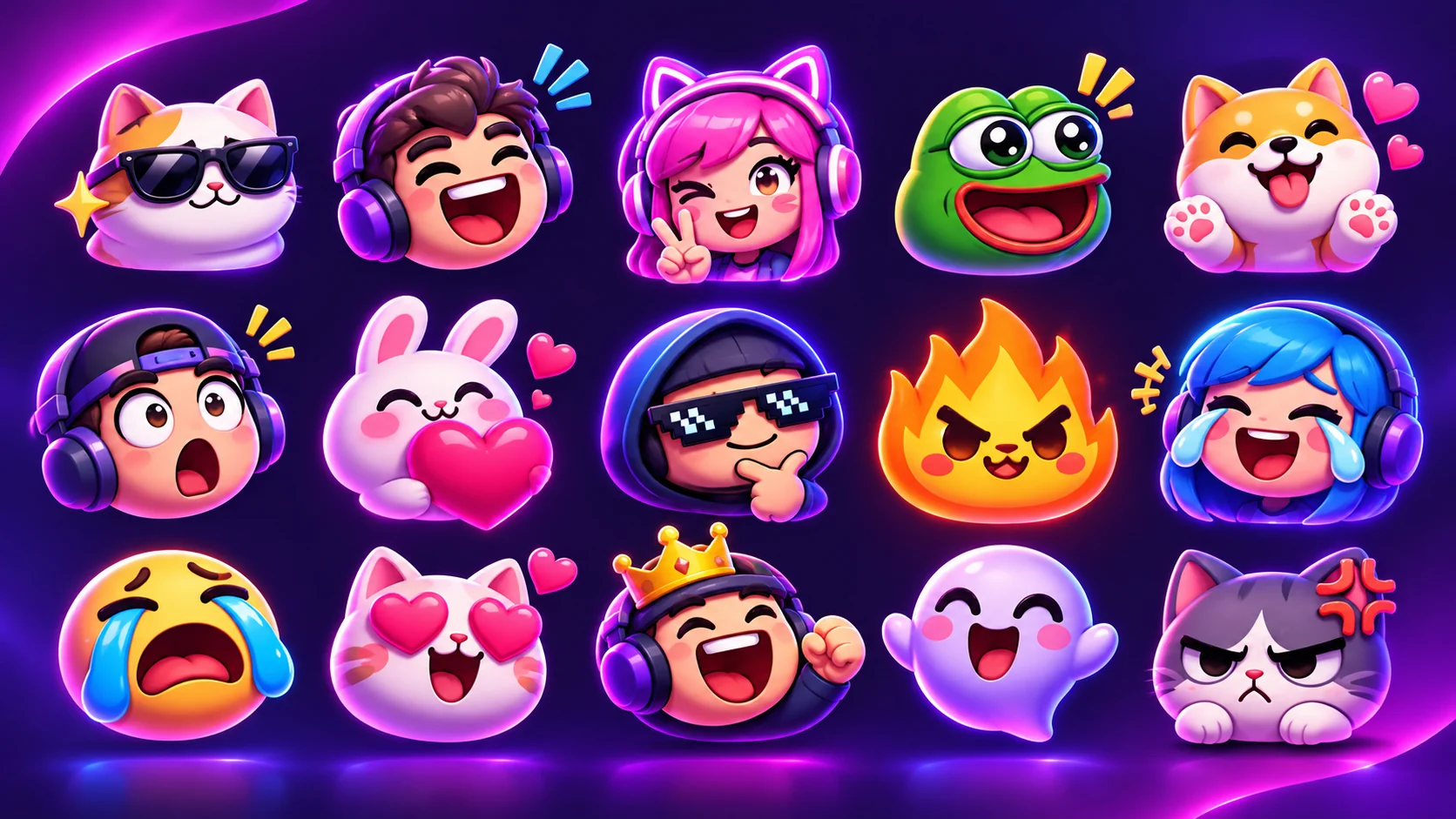
A BetterTTV emote is a small image you can use in Twitch chat by typing its text name, exactly like a Twitch emote. The difference is where it comes from: Twitch emotes come from Twitch (subscriber emotes, Bits emotes, and the built-in set), while BetterTTV emotes come from the BetterTTV extension. They only appear for people who have the extension installed in their browser.
That last point is the one beginners trip over most. If you type a BetterTTV emote and someone without the extension is reading chat, they see the emote's text name : for example, the word itself : instead of the picture. Nothing is broken. They simply do not have BTTV installed. This is also why streamers regularly remind their communities to install it: the jokes in chat only land if everyone can see them.
Global emotes: the ones that work everywhere
Global emotes are BetterTTV emotes that work in every channel. They are the shared vocabulary of Twitch chat : the reactions and jokes that regular viewers recognize instantly, whatever channel they are in. When the official site says "browse thousands, add any to your chat", it is talking about the global catalogue as well as channel emotes.
You do not need to do anything special to use a global emote. Once the extension is installed and enabled, type its name in chat and it renders as an image for everyone else who has BTTV. The improved emote menu in the extension lets you browse them instead of memorizing names, which is how most people discover new ones.
Channel emotes: each community's own set
Channel emotes are custom emotes a channel adds for its own community. A streamer can upload emotes that fit their inside jokes, their community's characters, or their stream's theme, and those emotes work in that channel's chat for everyone with BTTV installed.
This is the part that makes BetterTTV valuable for streamers, including channels that are not Twitch Affiliates or Partners. Twitch's own subscriber emotes are tied to subscriptions; BetterTTV channel emotes are not. A small channel can have its own emote set from day one, and its viewers can use those emotes immediately.
Channel emotes are also the reason emotes sometimes "don't work" when you change channels. An emote that belongs to one channel's set does not automatically work in another channel. If you type a channel emote somewhere it does not belong, it shows up as text : again, nothing is broken.
Emote sets: keeping emotes organized
Emote sets are grouped collections of emotes. The official BetterTTV website shows sets with names such as Classics, Halloween and Winter : themed groups that keep emotes organized instead of one endless list. Sets make it easier to find the emote you want, and they let channels and communities build collections around a season, a joke, or a theme.
For viewers, sets are mostly a browsing convenience: open a set, see what is in it, and use what fits. For streamers, they are a way to organize a channel's emotes so the community can find them without scrolling through everything at once.
How to add a BetterTTV emote
Adding emotes is deliberately simple. The official site describes the whole flow in three steps : install the extension, add some emotes, start chatting : and adding is the middle step. In practice it works like this:
- Install the extension first. You need BetterTTV installed and enabled in your browser before emotes will show up. See the installation guide if you have not done this yet.
- Browse emotes on the official site. Open betterttv.com and browse what is trending, or search for a specific emote.
- Add any emote from its page. Each emote has its own page, and you add it from there. Once added, it is available in your chat.
- Use it in chat. Type the emote's name in any Twitch chat. Everyone with BetterTTV sees it straight away.
There are two other ways emotes get added that are worth knowing. Viewers can add emotes directly from chat : if you see an emote you like, you can add it without leaving Twitch. And in some channels, viewers add emotes with channel points, which turns emote suggestions into a small community activity rather than a streamer's solo job.
For streamers: channel emotes are one of the cheapest ways to give a small community its own identity. You do not need Affiliate or Partner status to use BetterTTV channel emotes : install the extension, add the emotes you want for your channel, and tell your viewers to install it too, so they can see them.
BetterTTV, 7TV and FrankerFaceZ: one install, three libraries
BetterTTV is an all-in-one extension: BetterTTV, 7TV and FrankerFaceZ in one place. That matters for emotes, because a channel's chat may use emotes from all three services. With one install, you see all of them. Without it, you would need a separate extension for each service : or you would see text names where pictures should be.
In everyday conversation, people often say "BTTV emotes" when they mean any of these third-party emotes. The distinction only matters when you are adding emotes yourself: a 7TV emote is added through 7TV, a FrankerFaceZ emote through FrankerFaceZ, and a BetterTTV emote through BetterTTV. As a viewer, you just install the extension and see all of them.
Animated emotes and Pro
Some emotes are animated. The free extension shows animated emotes that channels and the global catalogue provide. BetterTTV Pro adds its own layer: Pro gives your name an effect and a badge, and emotes that follow you into every chat : including up to 50 personal emotes. Personal emotes are emotes tied to you rather than to a channel, so they travel with you wherever you chat. For most viewers this is unnecessary; for people who live in Twitch chat, it is the main reason to look at Pro. Prices are not stated here : check the official BetterTTV website for current Pro details.
Well-known global emotes (examples from the official site)
To make global emotes concrete, here are examples shown on the official BetterTTV website itself: FeelsGoodMan, DogChamp, monkaS, D:, FeelsPumpkinMan, FeelsSnowyMan, SourPls and FeelsSnowMan. These are the kind of emotes that regular Twitch viewers recognize instantly : reactions and characters that have become part of chat's shared language over the years.
Seasonal sets work the same way: the official site shows Halloween and Winter sets alongside the Classics, with themed emotes that fit the time of year. If you browse the global catalogue around a holiday, expect to find a set for it. Availability of any specific emote can change, so treat these as examples of the kind of emotes in the catalogue, not as a guarantee that each one is available today.
Emotes on YouTube
BetterTTV emotes are mainly a Twitch story, but the extension also supports YouTube in beta. On YouTube, the same idea applies : extra emotes in live chat : but with two conditions. First, you need to agree to the additional YouTube permission at installation, or enable it later from BetterTTV Settings. Second, not all BetterTTV settings are compatible with YouTube, so some chat features that work on Twitch may not work there yet. If you mainly watch YouTube streams, install the extension, enable the YouTube permission, and check which features appear : the emote menu is the quickest way to tell what is working.
Adding emotes as a streamer
So far this guide has been written for viewers. Streamers use the same system from the other side, and it is worth explaining because it is where channel emotes come from.
A streamer adds channel emotes from the official BetterTTV website. The flow mirrors the viewer's flow: browse the emotes on the official site, pick the ones that fit the channel, and add them to the channel's set. Once added, anyone watching that channel with BTTV installed sees them in chat immediately : there is no waiting period and no approval queue on the viewer's side. Viewers can also add emotes directly from chat, and in some channels viewers add emotes with channel points, which lets the community suggest emotes instead of leaving every choice to the streamer.
How many emotes can a channel have? The free extension gives a channel its own emote set; BetterTTV Pro raises the limit substantially : up to 500 channel emotes, alongside up to 50 personal emotes. The exact free limit is not stated on the official homepage, so this site does not claim a number: check the official BetterTTV website for the current limits if you are planning a large emote set. For a small or new channel, the practical advice is simpler : start with a handful of emotes that fit the community's jokes, and add more when viewers ask for them. A channel with ten emotes everyone uses is better than a channel with a hundred nobody remembers.
One more streamer note: because channel emotes are separate from Twitch's own subscriber emotes, they work for every viewer, not just subscribers. That is why even channels that are not Affiliates or Partners use them : they are the fastest way to give a small community a shared language.
What happens when an emote is removed
Emotes do not last forever. A channel can remove an emote from its set, and a global emote can be removed from the catalogue. When that happens, the emote stops rendering for everyone: messages that used it show its text name instead of the picture, including old messages. That is normal, and it is not a sign that your extension broke : the emote simply no longer exists in the set it came from.
The same thing happens in reverse: if a channel replaces an emote's image but keeps its name, the new image appears everywhere the old one did. Emotes are looked up by name at the moment a message is displayed, not frozen into the message when it was sent. If an emote you used yesterday suddenly looks different or shows as text, check whether the channel changed its set before troubleshooting your browser.
Why emotes sometimes don't show
This is the most common emote problem, and it almost always has one of four causes:
- The extension is not installed or not enabled. Open your browser's extension manager and check that BetterTTV is switched on, then refresh the Twitch page.
- The emote belongs to a different channel. Channel emotes work in their own channel. Typing one elsewhere shows text.
- The other person does not have BTTV. You see the emote; they see its name. That is expected.
- The page loaded before the install. Twitch pages open before installation do not pick up the extension until you reload them.
If none of those apply, the full troubleshooting guide walks through the rest, including browser updates and conflicting extensions.
Emote etiquette: a short note
Emotes are a shared language, and every channel has its own dialect. A few habits will keep you out of trouble: use a channel's own emotes in that channel, do not spam the same emote repeatedly, and remember that moderators can see exactly who is posting what. An emote that is funny in one community can be unwelcome in another : when in doubt, watch chat for a while before joining in.
The short version
Global emotes work everywhere, channel emotes belong to one community, emote sets keep them organized, and you add them from the official BetterTTV website or directly from chat. Everyone who wants to see them needs the extension installed. Install it once, add the emotes you like, and chat gets a lot more expressive.