BetterTTV is a browser extension for Twitch : and for YouTube, where it runs in beta. That second half of the sentence is doing a lot of work. "Beta" means the feature is real and usable, but newer, less complete, and more likely to change than the Twitch side. If you install BetterTTV expecting the full Twitch experience on YouTube, you will be disappointed. If you install it knowing what the beta covers, it is genuinely useful.
This guide is built from the official BetterTTV website, checked on 10 November 2026. Where the official information does not specify a detail : for example, exactly which settings work on YouTube : this guide says so instead of guessing.
What "beta" means here
On the official BetterTTV website, YouTube support is described as beta. In practice, that means three things. First, the YouTube features exist and work, but they are newer than the Twitch features and have had less time to mature. Second, not all BetterTTV settings are compatible with YouTube : the official site says so directly. Third, the beta can change: features can be added, fixed or removed, and the list of what works today may not be the list of what works in six months.
The practical consequence is simple: check the current official information if something you expect is missing on YouTube. The absence of a feature on YouTube is usually a beta limitation, not a bug in your install : and reinstalling will not add it.
How to enable BetterTTV on YouTube
Setup has two parts: the extension, and the permission.
- Install the extension. Install BetterTTV from the official route for your browser, exactly as the installation guide describes. The extension is the same one you use for Twitch : there is no separate YouTube version to install.
- Agree to the additional permission. To enable BetterTTV for YouTube, you need to agree to the additional permission at installation. The browser will ask for it as part of the install flow. If you did not agree at install time, you can still enable it later from BetterTTV Settings : open the settings from Twitch chat, find the YouTube option, and enable it there.
- Open a YouTube live stream. Go to a live stream on YouTube and look for the emote menu in live chat. If it appears, YouTube support is working. If it does not, refresh the page and check the permission is enabled.
One point worth stressing: the permission is per browser, like the extension itself. Enabling YouTube on Chrome does not enable it on Firefox. If you watch YouTube in a different browser from the one you use for Twitch, enable it in that browser too.
What works on YouTube
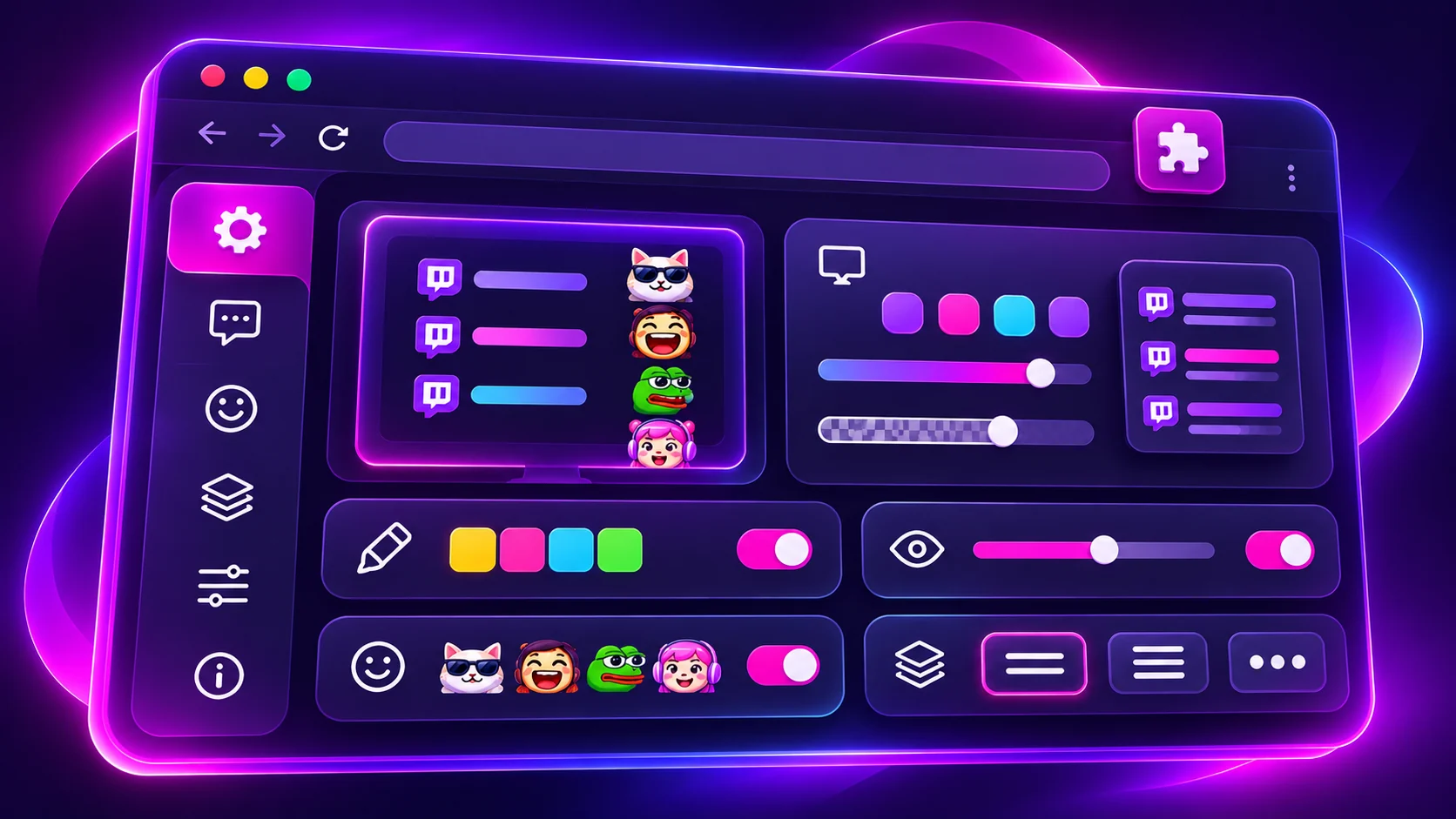
The core of BetterTTV works on YouTube: emotes and the emote menu. Once the permission is enabled, the emote menu appears in YouTube live chat, and you can browse and use BetterTTV emotes there : global emotes, and the channel emotes for the channels you watch. Other viewers with BetterTTV installed can see the emotes you use, exactly as on Twitch.
The chat features that do not depend on Twitch also carry over. The appearance settings : split chat lines, chat colours, readable username colours : work on the chat itself, because they change how chat displays rather than how Twitch works. Keyword highlighting and blacklists work the same way: they operate on the text in front of you, whatever platform it came from. The emote menu, tab completion and the improved emote browsing are part of the same group.
That is the honest extent of what this guide can promise. The official site states that not all settings are compatible with YouTube, without listing each one : so the right approach is to test the settings you care about on a YouTube live stream and see which ones appear and work. Do not assume a setting that works on Twitch will work on YouTube, and do not assume a missing feature is broken.
What does not work on YouTube
The features that do not work on YouTube are mostly the ones built around Twitch itself : because YouTube does not have the things they are built for.
- Channel points auto-claim. YouTube has no Twitch channel points, so there is nothing to claim.
- Auto-join raids. Raids are a Twitch feature. YouTube live streams do not raid each other in the same way.
- Auto-enter mod view. Mod view is a Twitch moderation interface. YouTube moderation works differently.
- Auto-claim drops and moments. Twitch Drops and moments are Twitch systems. They have no YouTube equivalent.
- Twitch-specific chat tools. Anything built around Twitch chat's specific structure : such as features tied to Twitch's own emote system : does not transfer.
Beyond that list, the boundary is the beta itself: some settings that should work in principle may not work yet, or may behave differently on YouTube's chat layout. YouTube's live chat is a different interface from Twitch chat : different layout, different message structure, different way of handling emotes : and an extension built first for Twitch will always fit Twitch better. That is what "beta" means in practice.
YouTube vs Twitch: the differences that matter
The two platforms differ in ways that shape the whole experience.
Chat moves differently
Twitch chat is fast, dense and emote-heavy; YouTube live chat is slower, more varied, and often mixed with comments from people who are not watching live. The settings that matter most on Twitch : split chat lines, keyword highlighting, hiding clutter : matter less on YouTube, because the chat is easier to follow in the first place. The emote menu matters more, because YouTube's own emote system is smaller than Twitch's.
Emotes work the same, communities do not
The emote mechanics are identical: global emotes everywhere, channel emotes in their own channel, both sides need the extension. But the communities are different. Twitch communities are built around channels and their emote cultures; YouTube communities are built around videos and creators, and live chat is a smaller part of the experience. A YouTube viewer will use fewer emotes, less often, than a Twitch viewer : and that is fine. The extension is there for when you want it, not to turn YouTube into Twitch.
Moderation is different
Twitch moderation is built around moderators in chat, with mod view and chat tools. YouTube moderation is built around the creator's settings and YouTube's own tools. BetterTTV's moderation-adjacent features : deleted-message viewing, first-time chatter highlighting : are Twitch-shaped, and they do not map cleanly onto YouTube. Do not expect the extension to change how YouTube moderation works.
Pro on YouTube
BetterTTV Pro's recoloring works on both Twitch and YouTube : the official site lists recoloring for both platforms. The other Pro perks are Twitch-shaped: personal emotes that follow you into every chat are most useful where you chat most, and channel emote slots matter for Twitch channels. You do not need Pro to use BetterTTV on YouTube : YouTube support is part of the free extension. The full Pro guide on this site covers the paid tier in detail.
Troubleshooting YouTube problems
Most YouTube problems have one of four causes.
- The permission is not enabled. Open BetterTTV Settings and check the YouTube option. This is the most common cause by far.
- You are looking at a video, not a live stream. BetterTTV's YouTube features are for live chat. A regular video's comments section is not live chat, and the extension does not add emotes there.
- The page loaded before the install. Refresh the YouTube page after installing or enabling the permission.
- The feature is not compatible with YouTube. Not all settings are compatible. If a feature works on Twitch but not on YouTube, that is usually the reason : check the current official information rather than reinstalling.
If none of those apply, the general troubleshooting guide on this site covers the rest: extension enabled, browser updated, conflicting extensions, and the last-resort reinstall from the official source.
One extension, two platforms
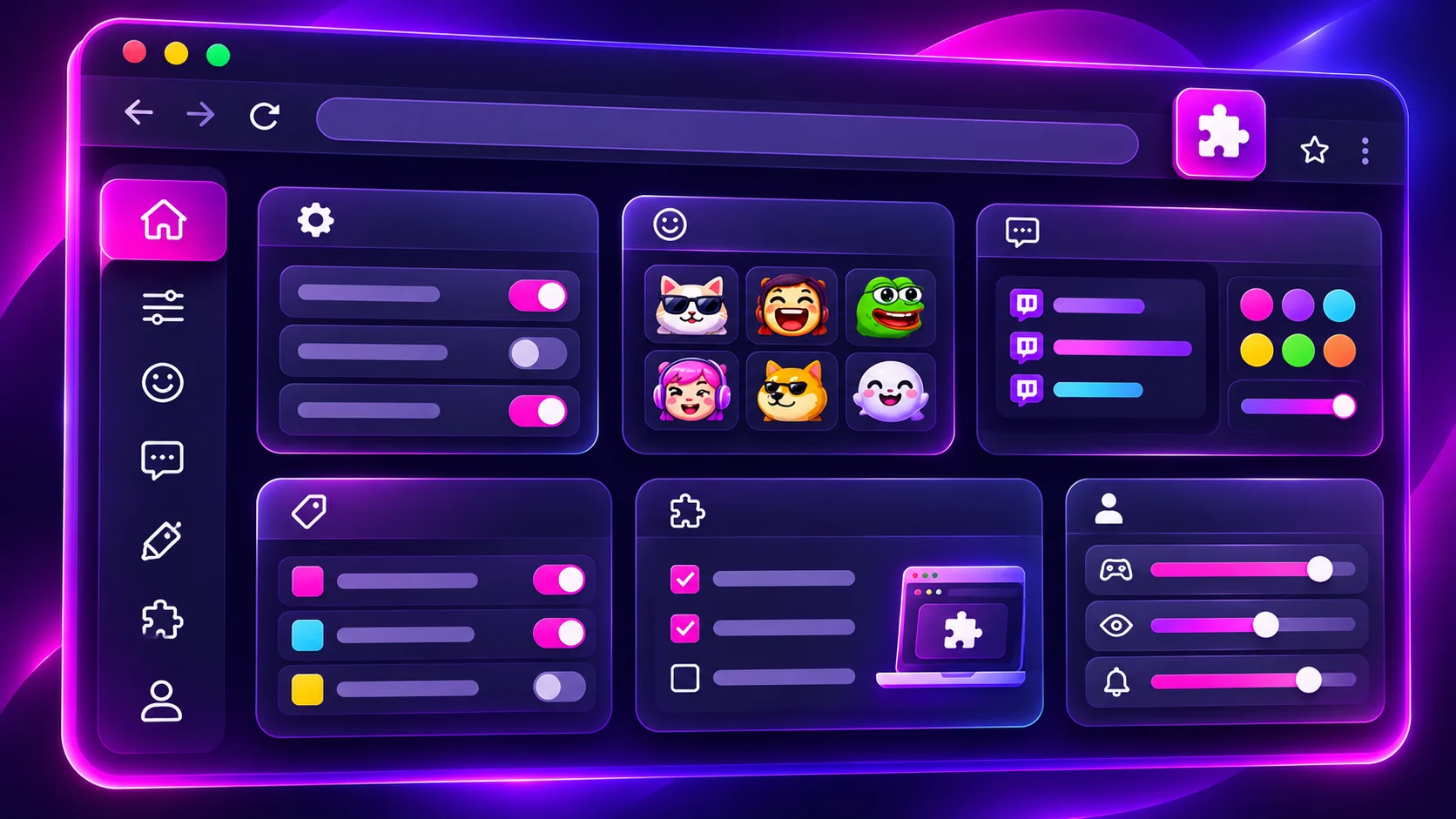
One thing that confuses people about YouTube support is that it is the same extension, not a second one. You install BetterTTV once, in one browser, and it works on both Twitch and YouTube in that browser. The settings panel is the same panel : open it from Twitch chat and the YouTube option is there. Your emotes are the same emotes: the global emotes you use on Twitch are the ones that appear on YouTube, and the emote menu is the same menu.
That shared identity is convenient, and it is also the reason the beta feels uneven. The extension was built for Twitch first, and YouTube was added later, on top of the same code. The parts that are platform-neutral : emotes, appearance, keyword tools : transfer cleanly. The parts that are Twitch-shaped : points, raids, mod view : do not transfer at all. And the parts in between : the settings whose behaviour depends on the chat interface : transfer partially, which is why testing them on YouTube matters more than reading about them.
The permission follows the same logic. It is per browser, not per platform: enabling YouTube on Chrome does not enable it on Firefox, and installing the extension on a second computer does not carry the permission with it. If you watch YouTube in a different browser from the one you use for Twitch, enable it in that browser too : and check the extension is installed there first, because the permission option only appears where the extension is running.
What viewers see: the other side of the permission
Everything so far has been about your browser. The other side matters just as much: what do other people see when you use BetterTTV emotes on YouTube?
The rule is the same as on Twitch. If another viewer has the BetterTTV extension installed with the YouTube permission enabled, they see your emotes as pictures. If they do not, they see the emote's text name instead. Nothing is broken : they simply do not have the extension. That is why the permission matters for viewers as well as for you: a YouTube live chat full of BTTV emotes is only readable if the people reading it have BTTV installed.
For creators, the implication is the same as on Twitch: if you want your YouTube audience to see your emotes, tell them to install the extension. A link to the official download in your video description or your channel's about section is the simplest way. And remember that YouTube audiences are less likely than Twitch audiences to have the extension already : Twitch viewers have been installing BTTV for years, while YouTube viewers may never have heard of it. Expect to explain it more often.
The future of the beta
The beta will change, and the direction is clear even if the details are not. YouTube support started as emotes and the emote menu, and it will grow from there: more settings becoming compatible, more chat features working on YouTube's layout, and the rough edges : the features that behave differently on YouTube : getting smoother. The official BetterTTV website is the place to watch for that progress, because it is where new features are announced.
What is less likely to change is the boundary: the Twitch-specific features will probably never come to YouTube, because YouTube does not have the things they automate. Channel points, raids and mod view belong to Twitch. The beta's future is not about bringing those to YouTube : it is about making the platform-neutral features work as well on YouTube as they do on Twitch. If you check back in six months, expect the compatible-settings list to be longer, not the Twitch-features list.
Should you bother with YouTube support?
If you mainly watch Twitch, YouTube support is a bonus you may never use : enable it once and forget about it. If you watch YouTube live streams regularly, it is worth the two minutes to enable: the emote menu alone makes live chat more expressive, and the appearance settings help in busy streams. If you never watch live streams on YouTube, do not bother : the extension does nothing for regular videos, and enabling a permission you will not use adds nothing.
The beta status is the honest caveat. YouTube support will get better over time, and the list of compatible settings will grow. For now, treat it as a useful extra on top of a Twitch extension : not as a second, equal product.
The short version
Install the extension, agree to the additional YouTube permission : at install, or later from BetterTTV Settings : and open a YouTube live stream. Emotes and the emote menu work; the chat display settings mostly work; the Twitch-specific automations do not, because YouTube does not have the things they automate. Not all settings are compatible yet : that is what beta means : so test the ones you care about and check the official site for the current list.