Browser extensions are small programs, and like all programs they need maintenance: updates when the developer releases them, and removal when you no longer want them. BetterTTV makes both easy, because it is distributed through official browser stores. Updates come through the store, automatically. Removal is a single action in the browser's extension manager. There is no separate updater to run, no uninstaller to download, and no account to delete for a basic install.
This guide covers both jobs in full: updating, checking your version, uninstalling per browser, what happens to your settings, and the situations where reinstalling is : and is not : the right fix.
How BetterTTV updates work
Browser stores generally manage extension updates automatically. When NightDev releases a new version of BetterTTV, the store delivers it to your browser without you doing anything. You do not need to check for updates, download anything, or run an installer. The update arrives, the browser applies it, and the extension keeps working.
That automatic process is the normal case, and it is the reason most people never think about updating at all. But "automatic" does not mean "instant". Stores roll updates out gradually, browsers check on their own schedule, and a browser that has been running for days without a restart may not have picked up the latest version yet. If you have heard that a new version fixes something you care about, it is worth checking whether you have it : which is the next section.
One warning that belongs here, not later: never download an update package from an unknown website. A genuine BetterTTV update comes through the official browser store, not a download mirror, a file shared in chat, or a page offering a "new version" installer. If a site offers you an update file, it is not the official source : whatever its version number claims to be.
How to check which version you have
There are two places to check, and they answer slightly different questions.
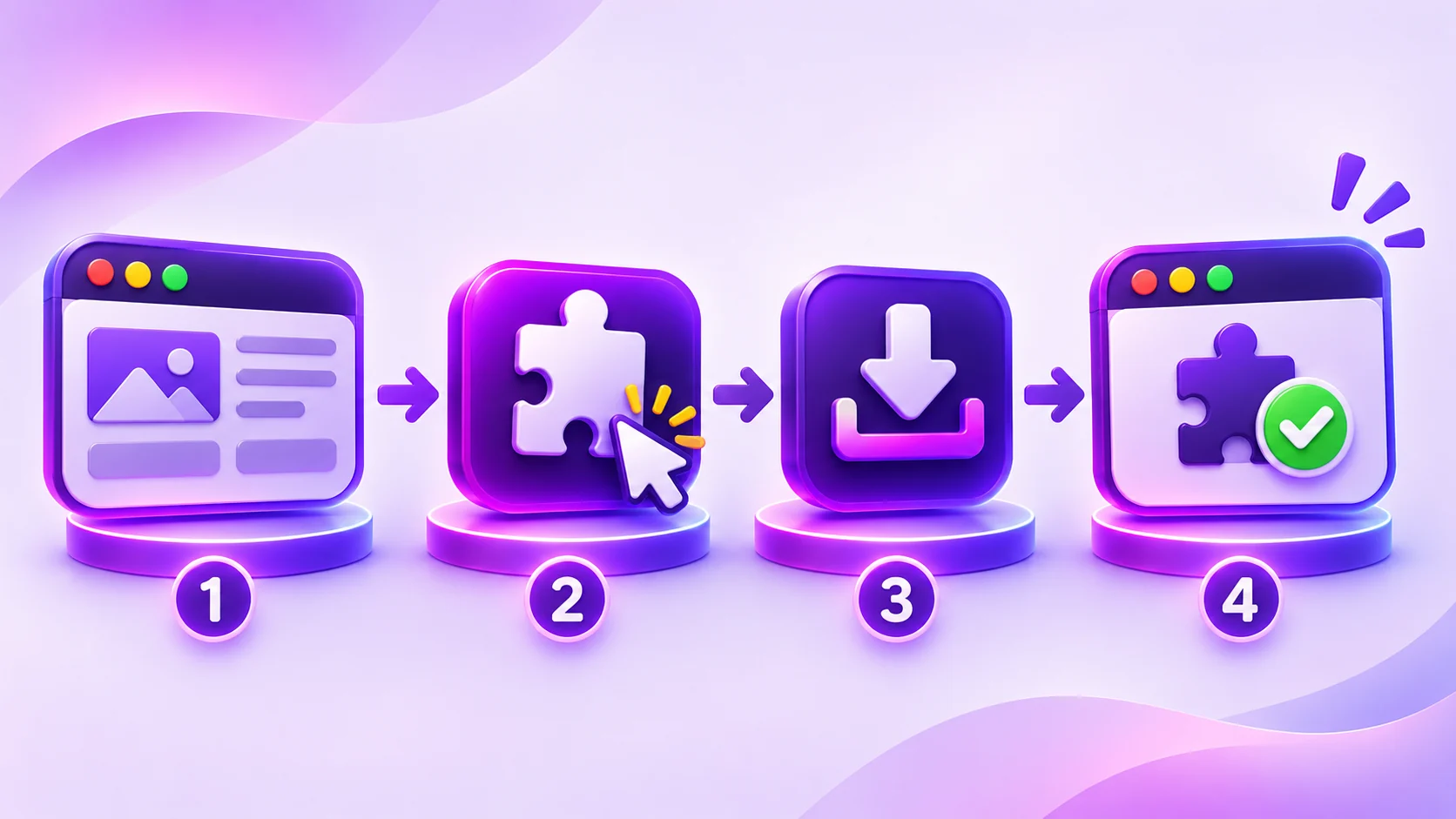
Your browser's extension page shows the version you actually have installed. Open the extension manager : chrome://extensions on Chrome, Add-ons Manager on Firefox, the Extensions page on Edge, the extensions manager on Opera : find BetterTTV, and the entry shows the installed version. This is the version running in your browser right now.
The official store listing shows the version the store is currently distributing, along with the date it was last updated. Open the listing from the official BetterTTV website and compare. If the store's version is newer than yours, your browser has not picked up the update yet. If they match, you are current.
This site does not state a current version number anywhere, for a simple reason: version numbers change with every release, and a number printed here would be out of date within weeks. The store listing is the authority : check it, not this article, for the current version. The same applies to file sizes and download counts: the listings disagree with each other, so this site does not publish any of them as fact.
How to force an update check
If the store has a newer version and your browser has not picked it up, you can prompt it. The exact steps differ by browser, but the pattern is the same: open the extension manager, look for the update option : Chrome has a "Developer mode" update button, Firefox checks through the add-ons manager, Edge has its own update control : and trigger a check. Then restart the browser, because an update downloaded while the browser is running may not apply until the next start.
If that does not work, the simplest reliable method is the one people resist: close the browser completely and open it again. Extensions update when the browser starts, and a browser that has been running for a week is the most common reason an update has not arrived. A restart costs a minute and solves more update problems than any other single action.
When to update : and when not to
Most of the time, you should not think about updates at all. The store handles them, and the extension keeps working. There are two situations where updating matters enough to check manually.
After Twitch changes something. Twitch updates its website regularly, and a change on Twitch's side can break how an extension reads the page : the emote menu disappears, a feature stops working, chat behaves oddly. When that happens, the fix is usually an extension update that adapts to the change. Check the store listing for a new version before assuming your install is broken: reinstalling the same version changes nothing, but updating to the new one fixes it.
After a browser update. A major browser update can change how extensions run, and the extension may need an update of its own to match. If BetterTTV misbehaves right after you updated your browser, check for an extension update before troubleshooting anything else.
When not to update: never, in the sense of refusing updates. There is no reason to stay on an old version deliberately : old versions have the bugs the new ones fixed, and they may not work with the current Twitch website at all. Let the store do its job.
How to uninstall BetterTTV
Uninstalling is as simple as installing. Open your browser's extension manager, find BetterTTV, and remove it. Then refresh any open Twitch pages. There is no separate uninstaller to run, no program to remove from your computer, and no account to delete for a basic install : because there was no account to create in the first place.
Chrome
Open chrome://extensions, find BetterTTV, and click Remove. Confirm the prompt. Refresh any open Twitch pages afterwards : pages loaded with the extension will still show it until you reload them.
Firefox
Open Add-ons Manager, find BetterTTV under Extensions, and click Remove. Confirm, then refresh any open Twitch pages.
Edge
Open the Extensions page, find BetterTTV, and click Remove. Confirm, then refresh any open Twitch pages.
Opera
Open the extensions manager, find BetterTTV, and remove it. Confirm, then refresh any open Twitch pages.
After removal, Twitch returns to its normal appearance immediately : the standard emote menu, the standard chat, no extra features. Nothing else changes. Your Twitch account is unaffected: BetterTTV is a browser extension, not your account, and uninstalling it removes the extension from your browser and nothing else.
What happens to your settings when you uninstall
Uninstalling removes the extension and its settings from that browser. Your keyword highlights, your blacklists, your appearance choices, your automations : all of it goes with the extension. If you reinstall later, your previous settings will not automatically return. You will start from the defaults again.
That matters in two situations. First, if you are uninstalling to fix a problem and plan to reinstall : note down any custom settings first, so you can put them back afterwards. A screenshot of the settings panel takes ten seconds and saves a frustrating half hour of reconfiguration. Second, if you are uninstalling because you are switching browsers : your settings do not travel with you. Set them up fresh in the new browser.
One exception worth knowing: if your browser syncs extensions and their data between computers, a reinstall on a synced browser may restore some settings. Do not rely on it : sync behaviour differs by browser and by setting, and the safe assumption is that an uninstall is a reset.
Uninstalling vs disabling: which one you want
Sometimes you do not want to uninstall at all : you want to turn the extension off for a while. Every browser lets you disable an extension without removing it: the same extension manager page has a switch next to each extension. Disabled, the extension stops running but keeps its settings. Re-enable it later and everything is back as it was.
Disable when you are troubleshooting : for example, to check whether BetterTTV is conflicting with another extension : or when you want a break from it without losing your settings. Uninstall when you are done with it for good, or when a clean reinstall is the fix you have decided on. The difference is one switch versus a removal, and choosing the wrong one costs you your settings.
Before you uninstall to fix a problem: try the enable, refresh and update checks first. Most problems are a disabled extension, a stale page, or an outdated browser : none of which uninstalling fixes. Reinstalling is a last resort, and it resets your settings, so note them down first.
Reinstalling cleanly
If you have decided a clean reinstall is the right fix, do it properly. Remove BetterTTV from the extension manager, restart the browser completely : not just the tab, the whole browser : and then install again from the official route: the official BetterTTV website, or the official browser store listing for your browser. Use the download page on this site, which routes to the verified official destinations.
After reinstalling, check the extension is enabled, open Twitch, and test the feature that was broken before changing any settings. If it works, put your settings back one at a time : because if a setting was the cause, restoring all of them at once brings the problem back with it. And remember the two warnings from the safety guide: never reinstall from a download mirror or a repackaged installer, and never install a "fix" file from an unofficial source. A genuine reinstall comes through the official store.
Updating on a second computer and synced browsers
Extensions live per browser, per computer : and updates follow the same rule. Installing BetterTTV on your desktop does not install it on your laptop, and an update that arrived on one machine does not automatically arrive on the other. Each browser on each computer checks the store on its own schedule.
If your browser syncs extensions between computers, the update may appear automatically on your other machines once you sign in : but check the extension manager on each machine anyway. Sync can lag, and a machine that has not synced will look exactly like a machine where the update failed. The fix is the same check on that machine: open the extension page, look at the version, and compare it with the store listing.
The same logic applies to profiles. An update applied in one browser profile does not automatically apply in another, and an extension installed in one profile may not appear in another at all. If BetterTTV looks outdated in one window but current in another, check which profile each window is using before assuming anything is broken.
After uninstalling: confirming it is really gone
After you remove the extension, confirm it is actually gone. Open the extension manager and check that BetterTTV is no longer listed : a removal that was interrupted, or a removal in the wrong profile, can leave the extension in place while you believe it is gone. Then open Twitch and check that chat looks like plain Twitch: the standard emote menu, no BetterTTV settings option, no extra emotes. If the emote menu is still there, you removed it from a different profile, or the page had not been refreshed.
While you are in the extension manager, look at what else is there. Uninstalling BetterTTV is a good moment to review the rest of your extensions: anything you do not recognize, anything you installed for a single purpose years ago, anything with a publisher you cannot identify. A browser with fewer extensions is a browser with fewer things that can break : and fewer things that can watch what you do. Remove what you do not use, and keep the list short.
What about BetterTTV Pro?
Uninstalling the extension does not cancel a Pro subscription, because Pro is a subscription managed through the official BetterTTV website, not through the browser. If you have Pro and you uninstall the extension, the subscription continues until you cancel it on the official site. Cancel Pro separately, through the official BetterTTV website, if you no longer want it. And if you reinstall the extension later and sign back into the same BetterTTV account, Pro should apply again : check the official site for current details on how Pro is linked to your account.
The short version
Updates come through the browser store, automatically : check your version on the extension page and the store listing if you want to confirm. Uninstalling is one action in the extension manager, per browser, followed by a refresh of any open Twitch pages. It removes the extension and its settings from that browser, and it does not touch your Twitch account. Disable instead of uninstalling when you are troubleshooting or taking a break. And never "update" or "reinstall" from a download mirror : the official store is the only route.